
TranslatePress translates the rendered page, so everything Elevated Product Search outputs, fixed labels and your own text alike, can be translated visually: open Settings › TranslatePress, add your languages, click Translate Site, then click any string on the page and type the translation. No configuration in Elevated Product Search is needed.
In Settings › TranslatePress › General, set your Default Language and add the languages you want to serve, then save.
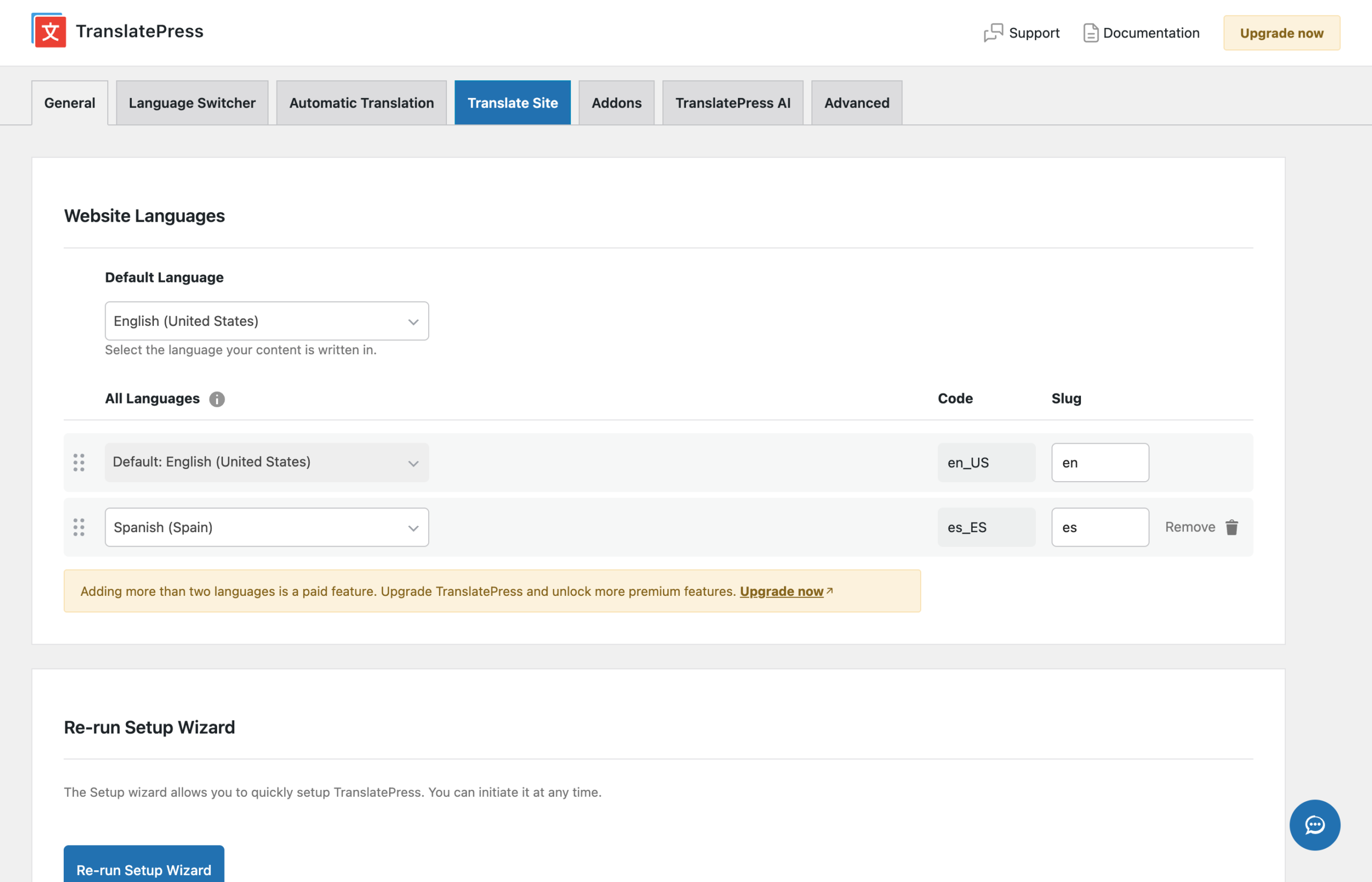
Click Translate Site. The visual editor opens your site with a sidebar; browse to a page where Elevated Product Search’s output is visible, click the string, type the translation for each language, and save.
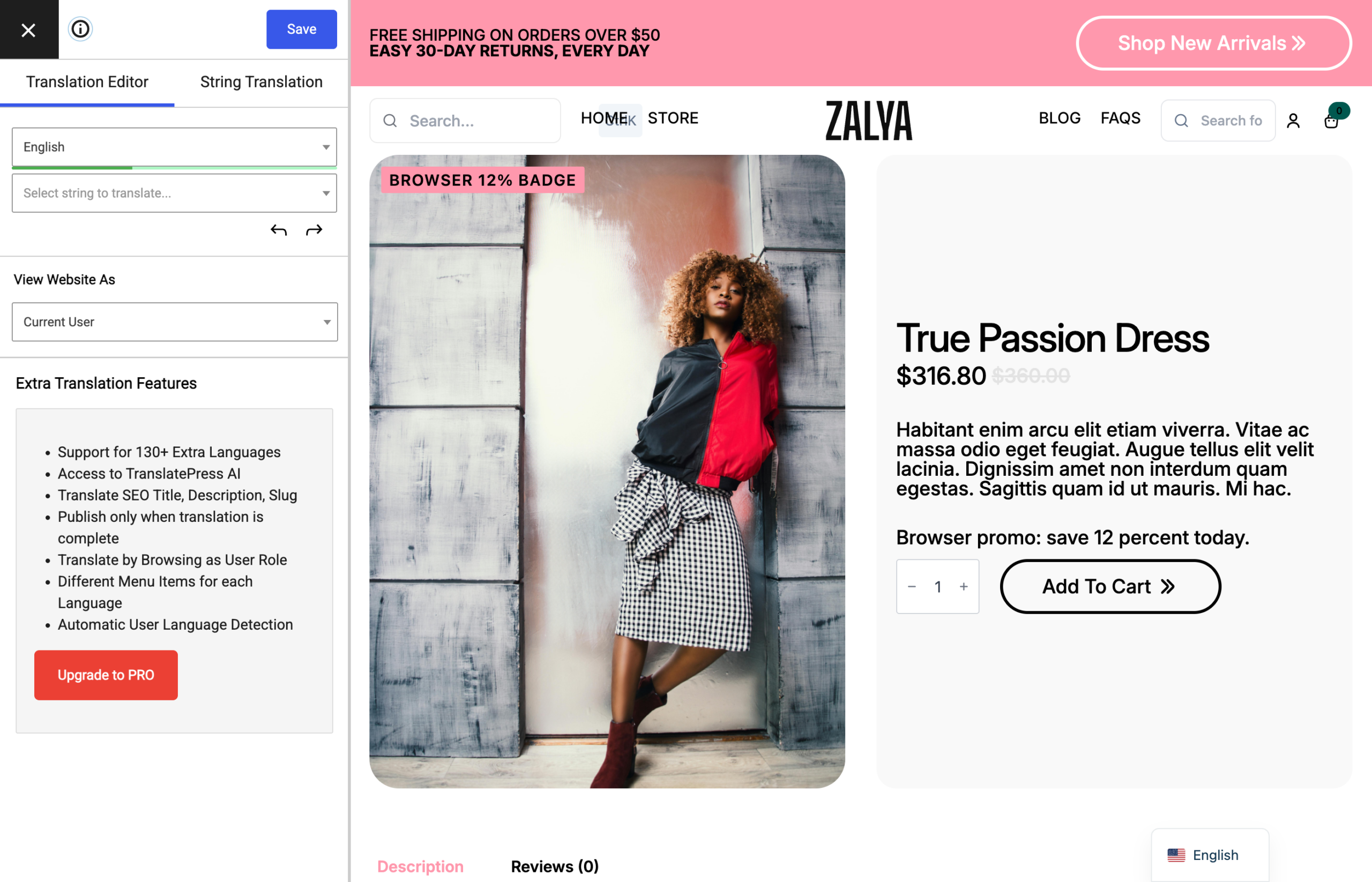
TranslatePress works on the rendered output rather than on translation files, so it does not use the elevated-product-search text domain or string registration. The bundled Spanish gettext translation still applies when the site language itself is Spanish; in TranslatePress you typically keep the site in your default language and translate the rendered strings per language instead.
A string cannot be selected in the editor. Strings assembled by JavaScript at runtime can be harder to pick up; translate them from the editor’s string list (the search box in the sidebar) instead of clicking.


