
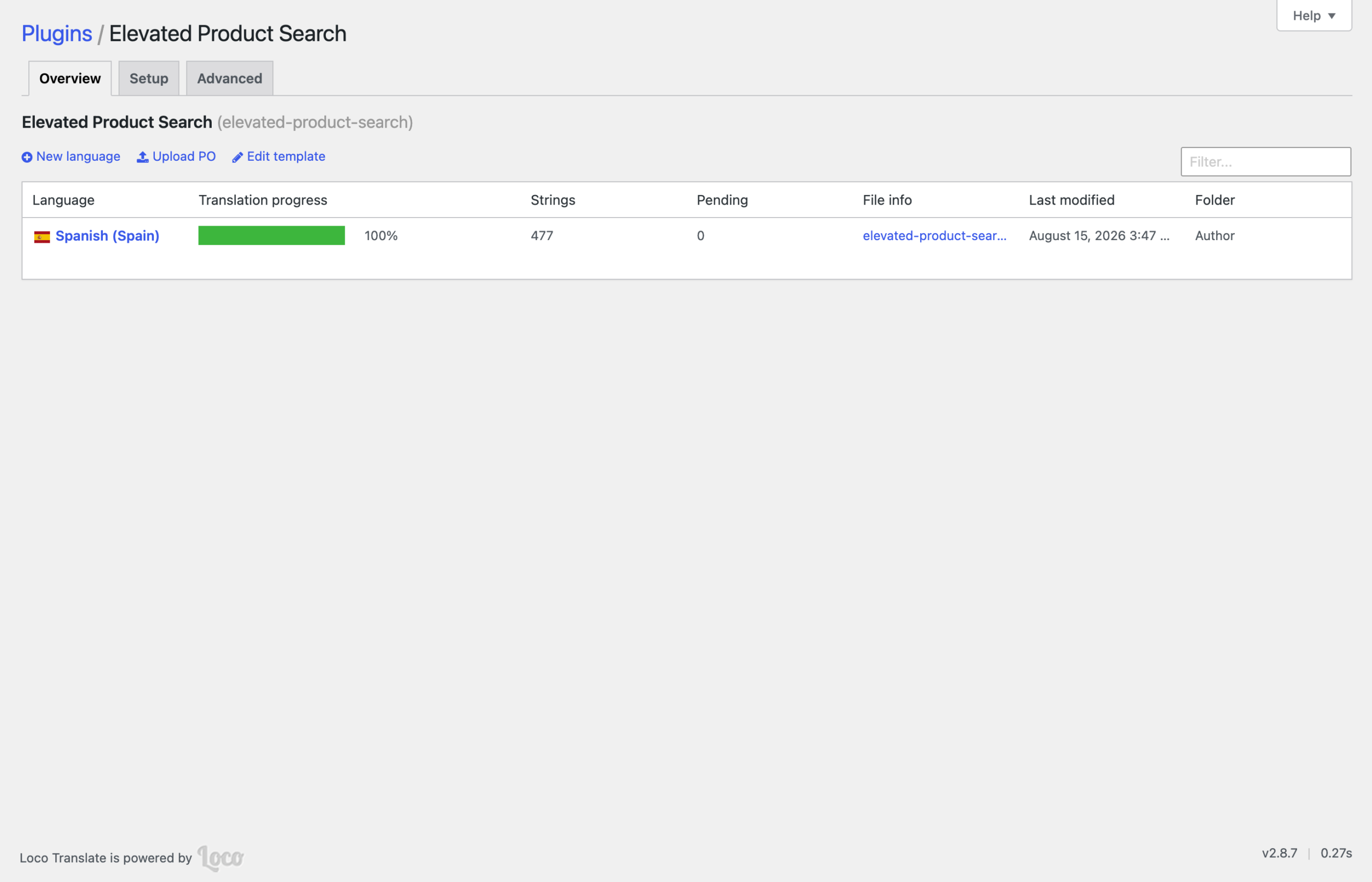
To translate Elevated Product Search into any language, install the free Loco Translate plugin, go to Loco Translate › Plugins › Elevated Product Search, click New language, choose the Custom location, and translate the strings you need. The bundled Spanish translation (477 strings, 100% translated) is visible on the same screen.
Install and activate Loco Translate from Plugins › Add New, then go to Loco Translate › Plugins › Elevated Product Search. The overview lists every translation, including the shipped Spanish one.
Click New language, pick your language, and choose a location:
languages/loco/plugins/elevated-product-search-{locale}.po): outside the plugin folder, so plugin updates never touch it. Use this one.languages/plugins/elevated-product-search-{locale}.po): also outside the plugin folder, but shared with translation updates from WordPress.org.plugins/elevated-product-search/languages/): inside the plugin folder, overwritten by every plugin update.Select any source string, type the translation, and click Save. Untranslated strings stay in English. The site picks the file up immediately, with no extra configuration.
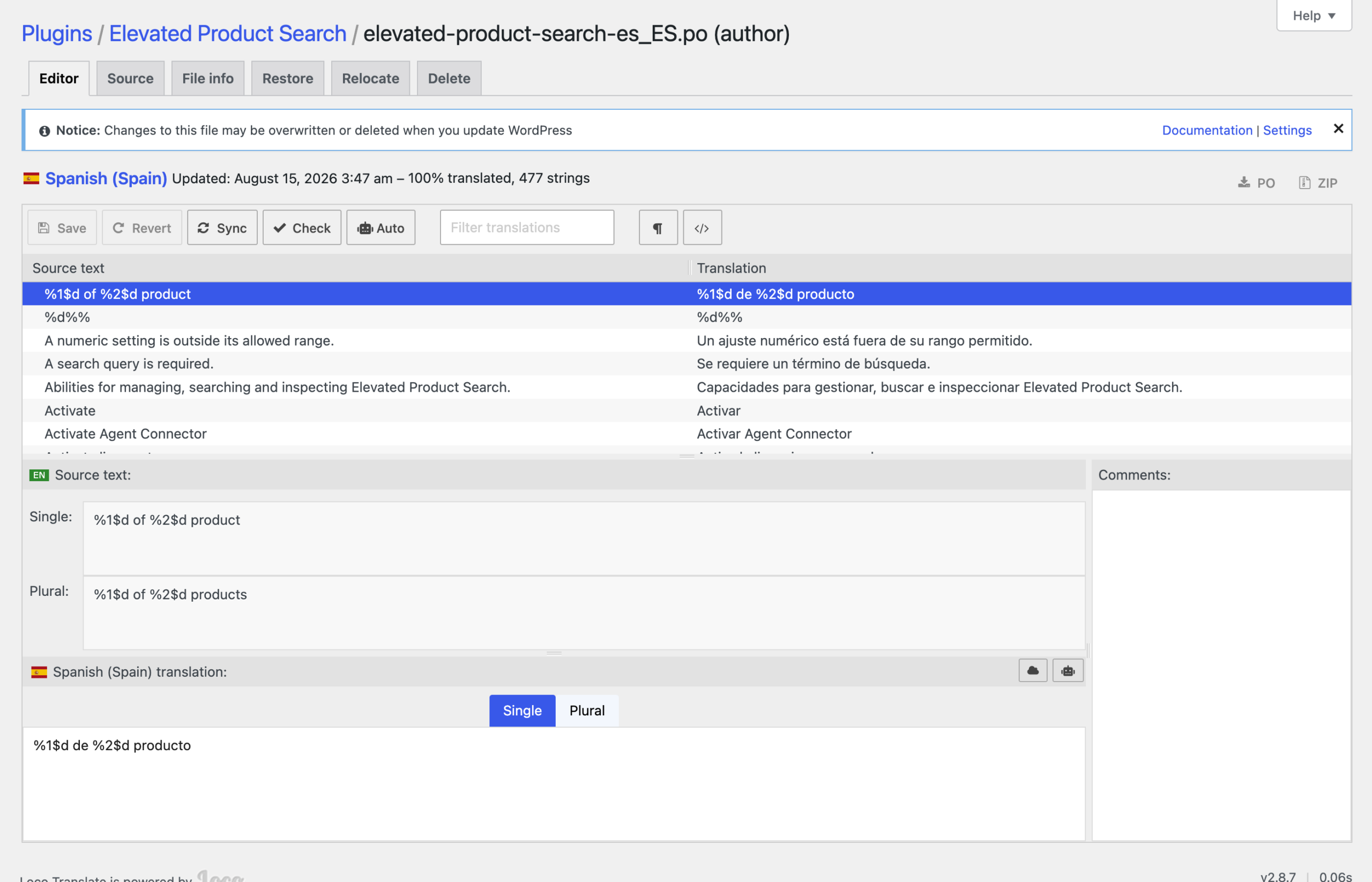
Every fixed label in the plugin is a gettext string in the elevated-product-search text domain. The shipped Spanish file lives inside the plugin (languages/elevated-product-search-es_ES.po); your own translations belong in the Custom location so they survive updates. The text you type yourself (labels and notices) is translated per language with WPML or Polylang instead; see Translating Elevated Product Search with Polylang.
Translations disappeared after a plugin update. They were saved in the Author location, inside the plugin folder. In Loco Translate, use Move to relocate the file to the Custom location and translate there.
New strings after an update are untranslated. Open the translation and click Sync to pull in new source strings, then translate the additions.


