
Home » Documentation » Product Search » Translations » Translating Elevated Product Search with Polylang

Translating Elevated Product Search with Polylang

On a Polylang multilingual site, Elevated Product Search’s fixed labels follow each visitor’s language automatically (Spanish ships in the box; add other languages with Loco Translate). The text you type yourself is registered with Polylang automatically, so you translate it under Languages › Translations in the Elevated Product Search group.

Table of Contents

How Registration Works

Elevated Product Search registers the text you type with Polylang when you save your settings: your saved settings, one entry per label. No setup is needed beyond having Polylang active with your languages configured.
Translating Your Own Text

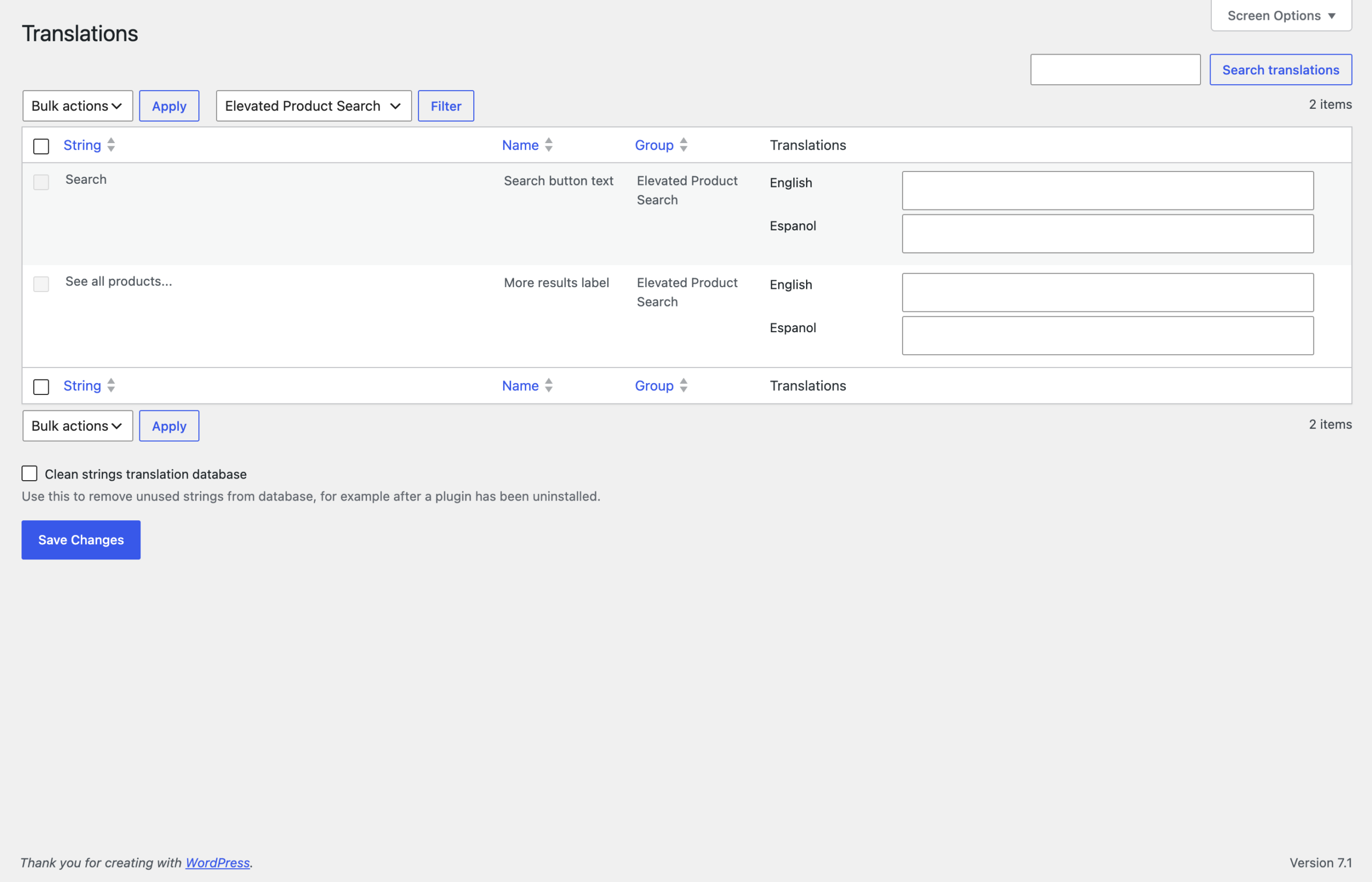
  • Go to Languages › Translations.
  • Set the Group filter to Elevated Product Search.
  • Type the translation for each language column and click Save Changes.
Polylang's Translations screen filtered to the Elevated Product Search group

Troubleshooting

A string is missing from the list. Strings register when they are saved. Re-save your settings and the entry appears.

The translation does not show on the storefront. Check that the page is being served in the expected language; Polylang decides the language from the URL.

On this page
Want More?

Get Every Elevated Extension You’ll Ever Need—One Payment, Yours for Life

Build faster, smarter, and without limits. A single purchase unlocks our entire library today and every new extension we release in the future. No renewals, no upsells, just lifetime power at your fingertips
+All other extensions for unlimited sites

The All Access Pass, available for a limited time

This exclusive package won't be around forever, as we will eventually move to a subscription model. This is your chance to get in early.
  • All Current Extensions
  • All Future Extensions
  • No Renewal Fees
  • 90-Day Money-Back Guarantee