
To filter your Instagram feed, navigate to Elevated › Instagram Feed, open your feed in edit mode, and proceed to Step 3 (Filters). Under the Feed Filters panel, you can use the Show Posts Containing and Hide Posts Containing fields to define keyword or hashtag parameters. You can also specify a Maximum Number of Posts to cap the total quantity of media rendered inside your layout.
Navigate to Elevated › Instagram Feed in your WordPress dashboard. Click on the My Feeds tab, locate your target feed from the list, and click the Edit button to launch the wizard.
At the top of the setup wizard, click step 3 (Filters) to load your moderation panel.

To restrict your feed so that it only displays posts matching specific topics, keywords, or campaigns:
Only media containing these exact matching strings in their Instagram captions will render in your public feed.
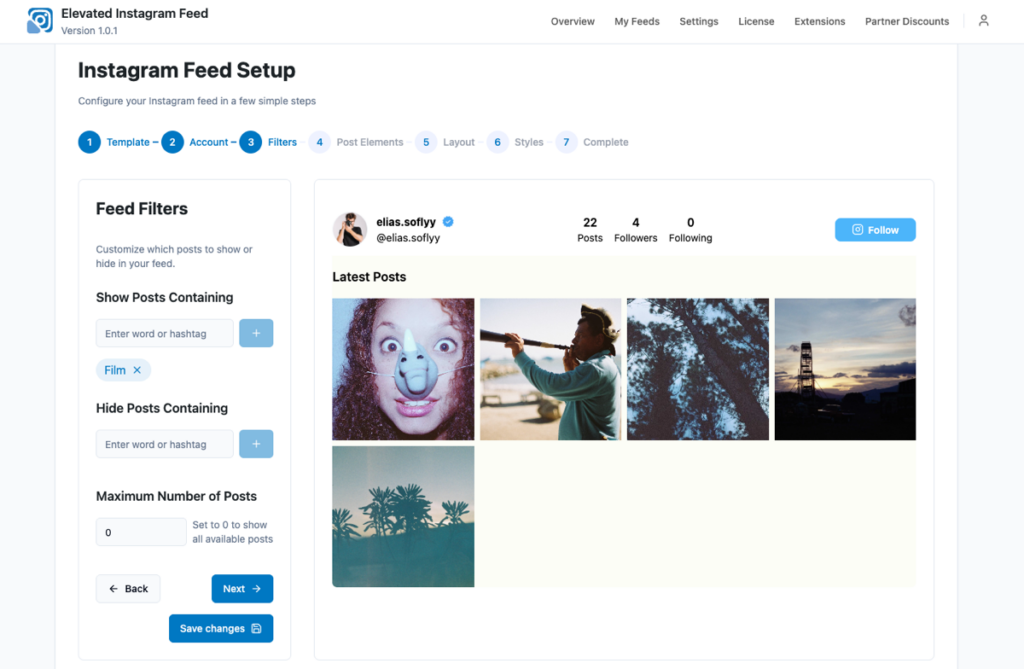
To ensure that specific personal, out-of-stock, or non-brand-aligned posts are blocked from displaying on your public pages:
Any posts containing these exact matching terms inside their captions will be dynamically hidden from the output layout.

To cap the total size of your feed:
Click Next to save your filter parameters and proceed to Step 4 (Post Elements).

If you configure both inclusion (Show Posts Containing) and exclusion (Hide Posts Containing) rules on a single feed, the filtering engine processes them sequentially:
The feed is completely empty after saving a filter
This occurs if your whitelisted words or hashtags are misspelled, or if your Instagram account does not contain any published posts that match your whitelist criteria. Keep in mind that while matching is case-insensitive, terms must match exactly. Check your spelling or click the small x on active filter terms to remove them and restore your feed.
Excluded blacklisted posts are still displaying on the website
If blacklisted posts continue to render on your live page after you have saved your filters, your local server cache is likely out of sync. To resolve this, navigate to the Settings tab at the top of the Elevated Instagram Feed dashboard and click the red Clear Cache button under the Clear Cached Media configuration setting. This clears your local media files and forces your filter rules to apply immediately.


