
To control which products appear in search results, navigate to Elevated › Product Search › Settings › Advanced Options and look for the Search Filters section. Choose whether to include all products, exclude specific categories or tags, or only include specific categories or tags. Toggle Exclude Out of Stock Products if you want. Click Save Settings. The indexer updates automatically.
Navigate to Elevated › Product Search › Settings.
Look for the Advanced Options section on the left side of the page. Click Advanced Options to expand it.

Scroll to the Search Filters section below Fuzzy Matching.

The Search Filters section provides three ways to control which products appear in search results.
Include all products: Every product in your store appears in search. No categories or tags are hidden.
Exclude specific products: Hide products from certain categories or tags. Products in the selected categories or tags will not appear in search results.
Only include specific products: Only show products from certain categories or tags. Products outside the selected categories or tags will not appear in search results.
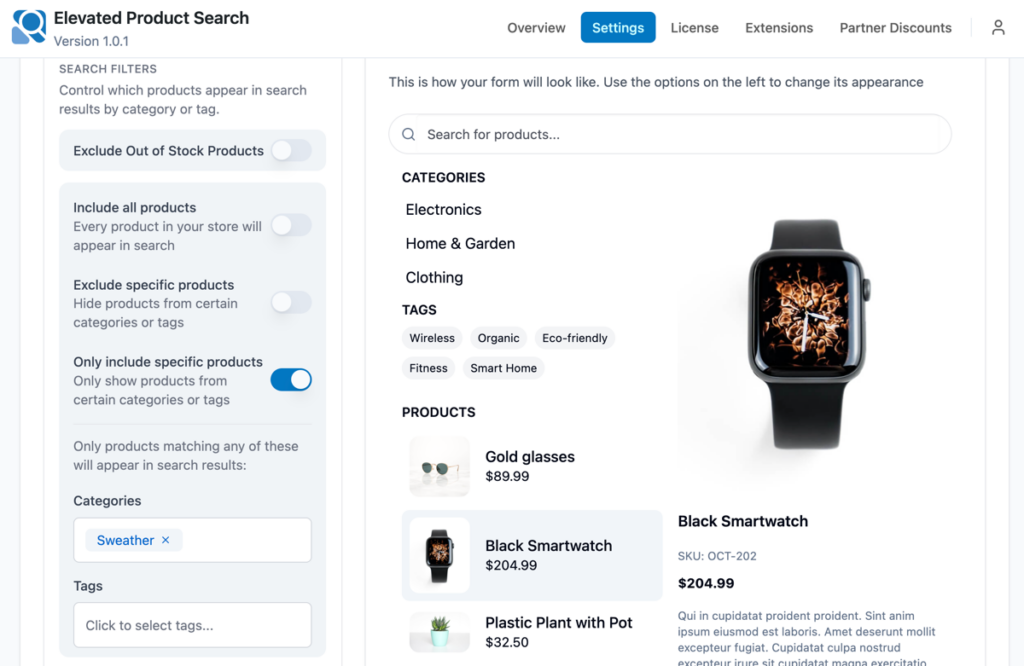
Toggle the option that matches your needs.
If you enabled Exclude specific products or Only include specific products, the Categories and Tags inputs appear below.
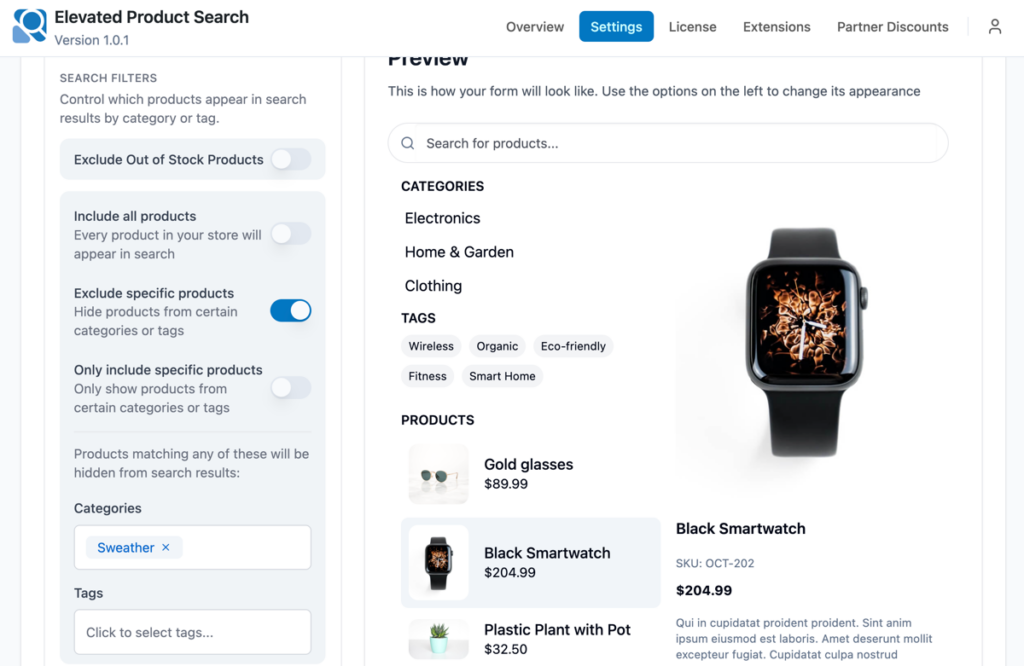
Click the Categories input and type a category name. Select the categories you want to exclude or include.
Click the Tags input and type a tag name. Select the tags you want to exclude or include.
Only products matching the selected categories or tags will be affected by the filter mode you chose.
Toggle Exclude Out of Stock Products to ON if you want to prevent out-of-stock items from appearing in search results.

This applies independently of category and tag filters. When enabled, any product with zero stock or marked as out of stock in WooCommerce will not appear.
Click Save Settings at the top of the page.
The indexer automatically rebuilds to apply the filter rules. A success message appears indicating how many products were indexed.
WooCommerce product filters restrict which products the indexer includes in the search results pool. This is different from Search Scope, which controls which product fields are searchable. Search filters control which products are eligible to appear at all.
When you choose Only include specific products, the indexer creates a whitelist. Only products assigned to the selected categories or tags are indexed for search. This is useful if you want the search form to show a subset of your catalog, such as a specific product line or seasonal collection.
When you choose Exclude specific products, the indexer creates a blacklist. Products in the selected categories or tags are skipped during indexing. This is useful for hiding internal products, discontinued items, or categories that should not be discoverable through search.
Exclude Out of Stock Products is a separate stock-status check. It does not rely on categories or tags. Instead, it checks the WooCommerce stock status field for each product. If your store uses backorders or manages stock at the variation level, verify that WooCommerce stock statuses are accurate before enabling this toggle.
WooCommerce product filters apply globally to all instances of the search form. There is no per-shortcode override for search filters.
Filtered products still appear in search
If you add WooCommerce product filters and they are not applying, confirm you selected the correct filter mode and categories or tags. If you chose Exclude specific products, verify that the product is actually assigned to the excluded category or tag. If you recently changed the settings, click Force Index Rebuild in the Indexer section and test again.
No search results appear at all
If you enabled Only include specific products and selected categories or tags with no assigned products, the search form will return no results. Switch to Include all products or verify your category and tag selections.
Out-of-stock products still appear
Confirm that “Exclude Out of Stock Products” is toggled to ON. Check that the product stock status in WooCommerce is set to Out of stock and not On backorder. Backordered products may still appear depending on your WooCommerce configuration.


